The fast way to compare and deploy Oracle schemas
See differences in schemas side-by-side and script up changes
Download 28-day free trial1 Year Subscription
$462 per user
1 Year Subscription
$393 per user
1 Year Subscription
$369 per user
20+
users
Contact us for a personalized quote
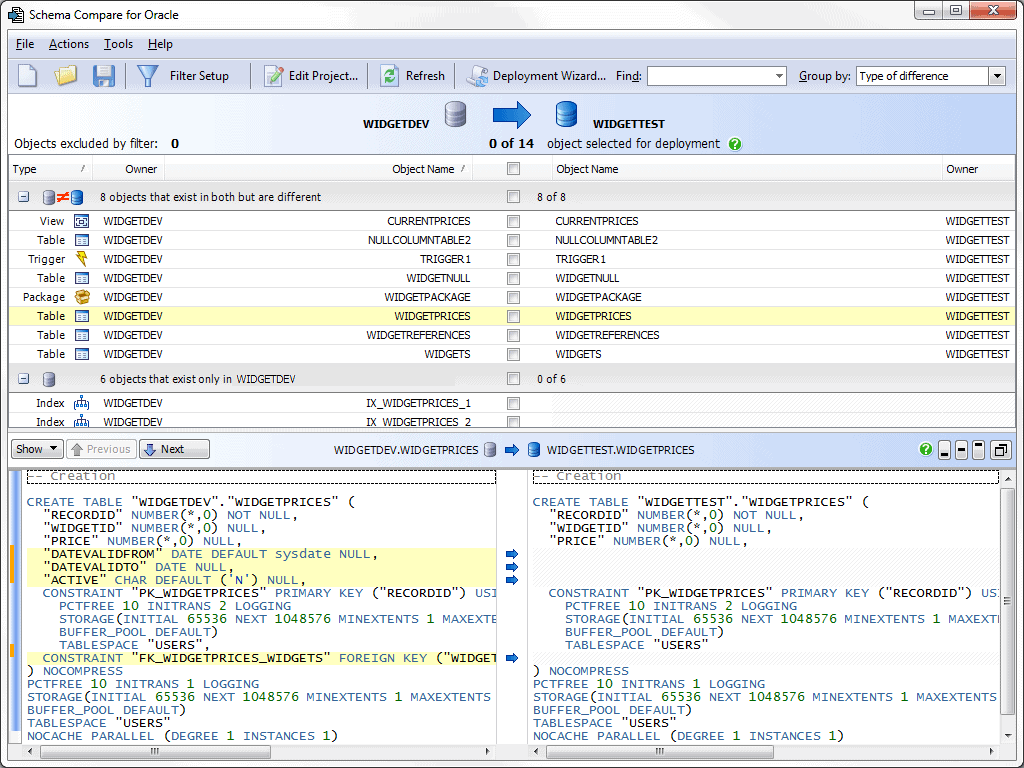
View schemas side-by-side
Drill down into the DDL for each object in your schema to see highlighted differences.
Filter by object, or type an object name to find it fast.
Compare databases, snapshots, and scripts folders. Easily find and fix errors in deployment.
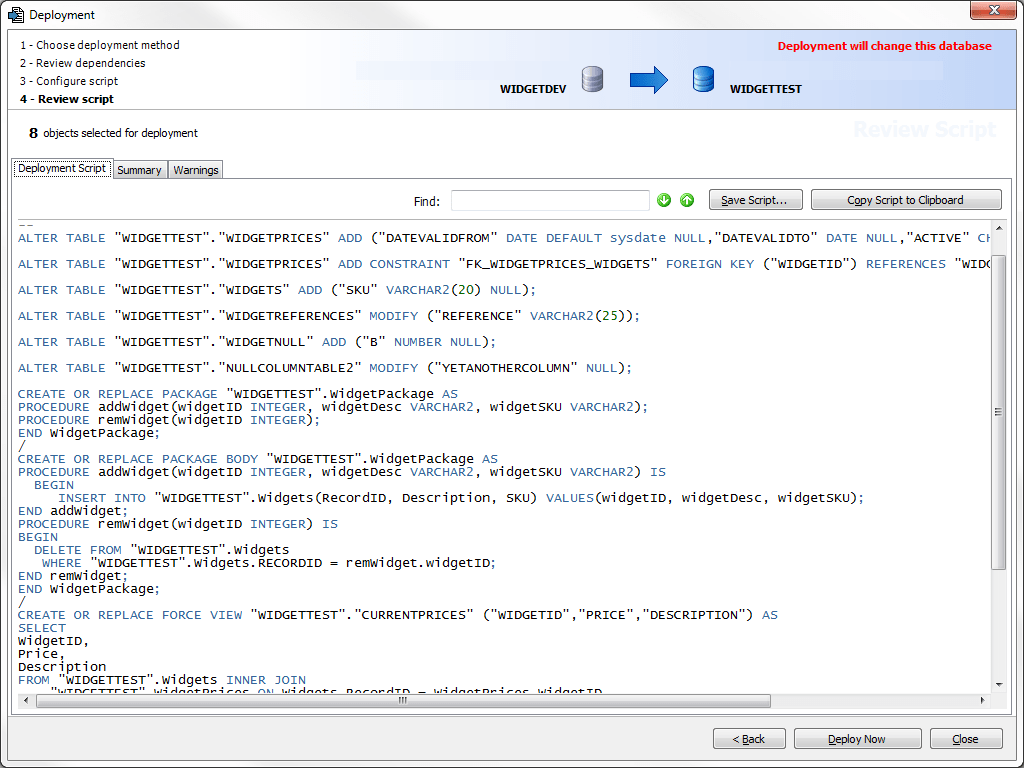
Deploy schema updates
Automatically create error-free synchronization scripts to deploy only the schema changes you want.
Get deployment notifications about dependencies, truncations, and other issues.
Deploy using Schema Compare or your IDE, or save a SQL script to share with your team.
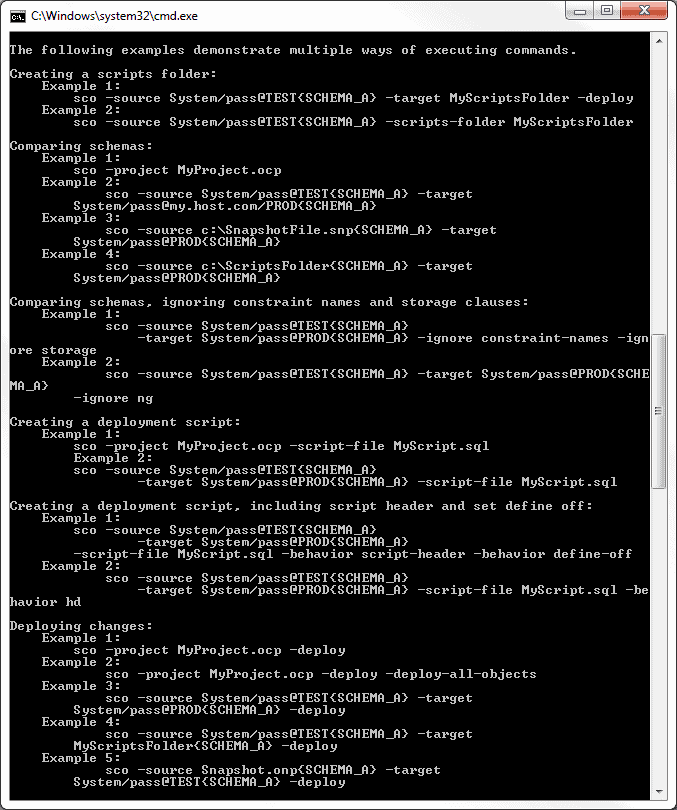
Work with the command line
Carry out any task using the command line tool.
Automate scheduled tasks like comparisons and deployments for continuous integration.
Create scripts folders of your schemas.
Objects are exported as individual creation scripts and arranged in folders by type, so the structure of your database is maintained.
The perfect partner for Source Control for Oracle
Use Schema Compare for Oracle with Source Control for Oracle — which makes the process of checking database changes into Git, SVN or TFS as simple as typing a comment.
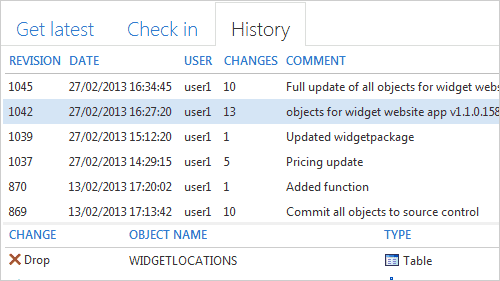
See who modified the database and why, and access a history of every change.
“Redgate's Schema Compare is by far the best schema comparison tool on the market. It now takes just 45 seconds for me to compare 6,000 objects in different instances of my database. This used to take 45 minutes in Oracle SQL Developer!”
“What really impressed me was the speed of the comparison. Comparing two schemas is done really quickly, even with a couple of medium sized production schemas.”
“The interface of Schema Compare for Oracle is very clean, it's easy to use and it gives me most features I'm searching for.”
“If you're looking for an easy to use, reasonably priced schema comparison tool for Oracle that allows you to fine tune the kinds of differences you're interested in seeing, then you need to take a look at Schema Compare for Oracle from Redgate.”
“Redgate's Schema Compare for Oracle accurately compared Peoplesoft Financials in 38 minutes. Embarcadero completed the same job in over 12 hours, and we simply couldn't get Toad's schema compare tool in their DBA suite to even finish the job, it would just error out.”
Get started with Schema Compare for Oracle
Download a 28-day trial of Schema Compare for Oracle.

If you'd like any help, or have a question about our tools or purchasing options, just get in touch.